How to connect to Apigee- Keyless — GCP hosted (Application Default Credentials)
Updated
There are several authentication options when connecting to Apigee. Use this option if your agent runs on Google Cloud compute (Compute Engine, GKE). With this option, there is no credential file to manage. The agent automatically uses whatever Google Cloud identity is already attached to the compute it's running on.
Prerequisites
- Create (or reuse) a Google Cloud service account with Apigee permissions (for example,
roles/apigee.apiAdminV2). - Attach that service account directly to the compute running your agent:
- Compute Engine VM: set
--service-account=<sa-email> --scopes=cloud-platformwhen creating the VM. - GKE: enable Workload Identity on your cluster, bind a Kubernetes ServiceAccount to the Google Cloud service account, and set that ServiceAccount on your agent's pod.
- Compute Engine VM: set
Connect to Apigee
- In API Control Plane, select Environments > Register Gateway.
- Select Apigee API Management.
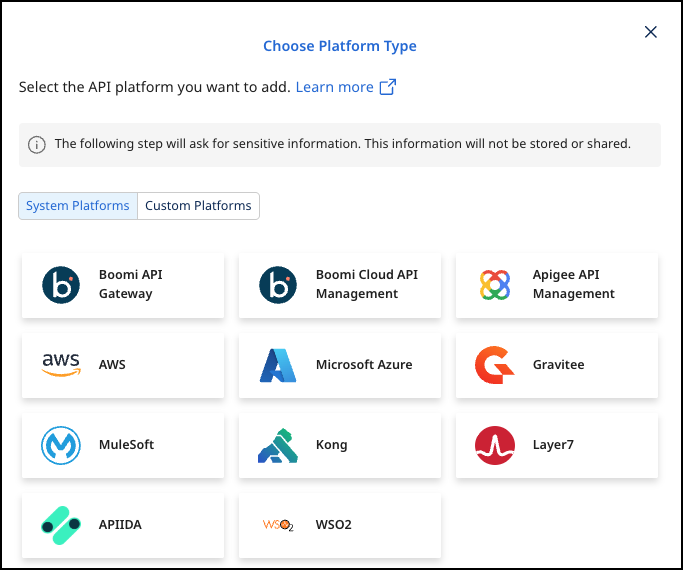
-
Add the following:
- Gateway Name
- Organization
- Authentication Method : **Keyless-GCP hosted (Application Default Credentials)
- Developer
-
Select Next.
-
Select Download and Next. Your configuration file will download automatically.
Variables
imageThe docker image of the API Control Plane Agentcontainer_nameYou can change the name of your Agent hereenvironmentbackendUrlThe agent will establish a web-socket to this URL and connect to your API Control Plane.agentTokengateway.typegateway.organizationgateway.googleAuthFilegateway.developergateway.gatewayEnvironments=test-env,prod-envList of environments
volumes
Check the Agent's Status
-
In API Control Plane, select Environments. Your agent is now connected to API Control Plane.
-
Click on the tile or the entry in the table to get more detailed information about the status of the connection. This can be very useful in case of an error.
